Trending Ai Car Driving Video Editing Tutorial | Instagram Viral Car Driving Reels Editing – Google Flow

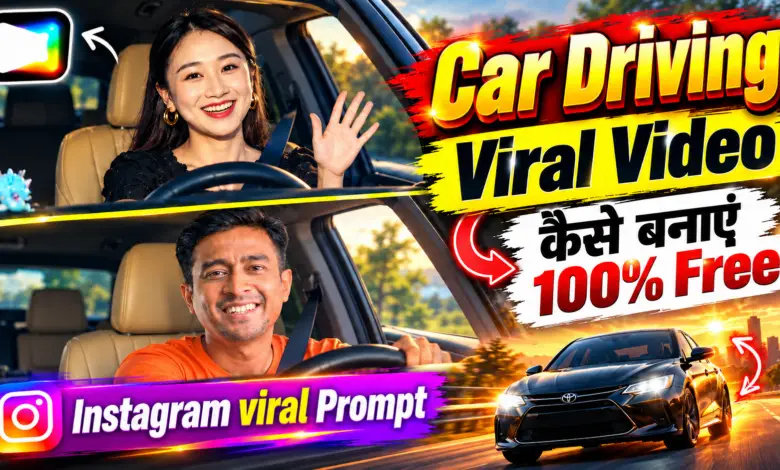
Google Flow AI Motion Control Video Editing Tutorial | Copy Any Video Motion With Your Photo
AI video editing is becoming more powerful every day, and one of the most interesting trends right now is motion-controlled AI video editing. Instead of manually describing every body movement, camera angle and action, you can use an existing video as a visual reference and ask AI to recreate a similar style using your own character or photo.
With Google Flow, creators can work with images, videos and visual references to create highly realistic AI-generated video content. This workflow can be especially useful for Instagram Reels, YouTube Shorts, cinematic edits, fashion videos, lifestyle content and viral AI videos.
In this tutorial, we will look at how you can create a Google Flow AI Motion Control Video by using your own image as the character reference and another video as the movement and visual-style reference.
What Is Google Flow AI Motion Control Video Editing?
The basic idea behind this editing technique is very simple.
You provide AI with two important references:
Character Image: This tells the AI what your final character should look like.
Reference Video: This gives the AI information about movement, camera motion, pacing, framing and overall visual dynamics.
You then use a carefully written prompt instructing the AI to preserve the character from your uploaded photo while reproducing the motion and visual behavior of the reference video.
This can make the workflow much easier than trying to manually describe every movement inside a long AI prompt.
Google Flow AI Creative Studio
Google Flow is an AI creative platform that allows creators to generate and refine images and videos using Google’s generative AI models.
Depending on the feature, model and platform available to you, Flow can work with different types of visual references and uploaded media. This makes it useful for creators who want more control over characters, scenes, movement and video style.
You can use your own character image, reference assets and prompts to guide the final generation.
How to Create Motion-Controlled AI Video in Google Flow
First, install or open the Google Flow app and sign in with your Google account.
Create a new project and switch to the video creation or editing workflow available on your account.
Then follow this process:
- Upload the image of the person or character you want to use in the final video.
- Add or upload the video whose motion, camera movement or visual style you want to reference.
- Make sure your character image is clear and contains enough facial and appearance detail.
- Paste the AI prompt provided below.
- Select the appropriate video model and generation settings available inside Flow.
- Generate the video and check facial consistency, body movement, camera movement and overall timing.
- If necessary, refine the prompt or regenerate the clip until the result closely matches your intended style.
For the best result, choose a reference video with clear movement and avoid videos with too many fast cuts or heavily obstructed subjects.
Google Flow Motion Copy AI Prompt
Use the following prompt after uploading your character image and reference video:
PROMPT
Create a motion-controlled video using the uploaded image as the exact character reference and the uploaded video as the reference for motion and visual style. Keep the character’s identity, appearance, proportions, and important visual details unchanged. Reproduce the reference video’s movements, camera motion, visual style, pacing, and overall dynamics as accurately as possible while naturally applying them to the referenced character.
This prompt is intentionally simple because most of the motion information should come from the reference video itself.
The uploaded image controls the character identity, while the reference video provides guidance for movement, camera behavior and visual pacing.
How to Get Better Results
Your character image plays an important role in the final output. Use a high-quality image where the face is clearly visible and avoid excessive blur, strong filters or heavily edited facial features.
Your reference video should also have clear subject movement. If the original video contains complicated transitions, multiple people or rapidly changing camera angles, the AI may interpret the motion differently.
For character-based videos, maintaining facial consistency is especially important. The face, hairstyle, clothing, proportions and overall appearance should remain stable during the complete generation.
If the first generation changes the face too much, try using a cleaner character reference and reinforce identity preservation in your prompt.
Create Instagram Viral AI Videos
This technique can be used for many different types of social media content.
You can create cinematic walking videos, car-driving videos, fashion reels, travel-style videos, luxury lifestyle edits, slow-motion character shots, cinematic portrait videos or other viral AI concepts.
Instead of recording every scene yourself, you can experiment with different reference videos and apply similar motion patterns to your AI character.
However, you should still customize the final result and avoid simply duplicating another creator’s complete creative work. Use the reference primarily as guidance for movement, pacing or camera style while adding your own character and creative elements.
Google Flow App for Android
Google Flow can also be accessed through its Android app, making it easier to work with your projects from a phone.
You can upload media from your device, continue working with project assets and save completed creations back to your device.
Some advanced video-generation or editing features may vary depending on your country, Google AI subscription, selected model and whether you are using the mobile or desktop version of Flow.
If a particular reference or editing option does not appear inside the mobile application, you can also check the desktop version of Google Flow.
Final Words
Google Flow AI Motion Control Video Editing can be a useful workflow for creators who want to transform a normal character image into a much more dynamic AI-generated video.
By combining a good character reference with a strong motion-reference video, you can guide the AI toward more natural movement, better camera dynamics and more controlled visual results.
The most important part is choosing clean reference material and clearly telling the AI which uploaded file controls the character and which one controls the movement.
Experiment with different reference videos, camera movements and character images to create unique Instagram Reels, YouTube Shorts and cinematic AI videos using Google Flow.